LinkedIn Auto Connect & Auto Message - LinkedIn Automation
# LinkedIn Auto Connect & Auto Message - LinkedIn Automation
Build Your LinkedIn Automation Pipeline
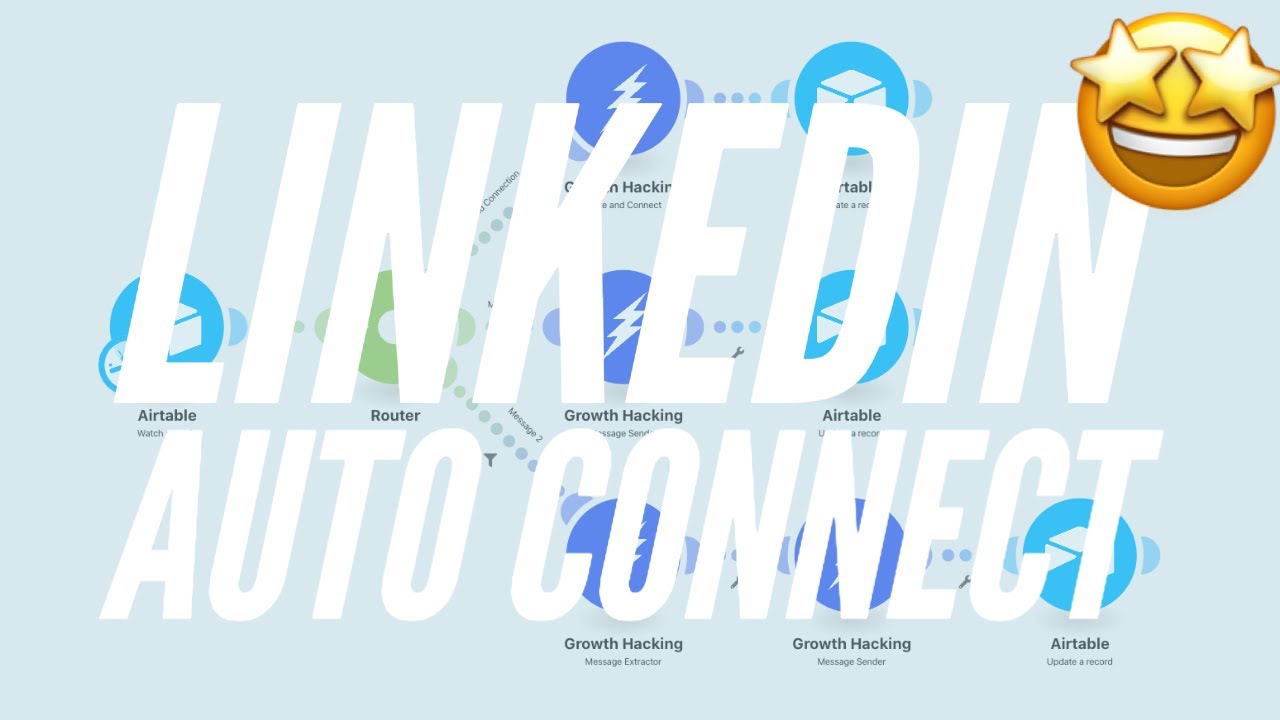
In this post, I’m diving straight into how to set up a LinkedIn automation tool using a bot. This method will streamline your outreach efforts, allowing you to send connection requests and auto-messages efficiently. By breaking down the process into manageable steps, we’ll construct a robust automation system that everyone can follow.
Step 1: Set Up Your Database
Before initiating any automation, you need a reliable database. Options include CRM platforms, Google Sheets, or Airtable. I recommend using Airtable for this guide because of its user-friendly interface.
To set up your Airtable:
- Create a new base and open a blank template.
- Add the following fields:
- Last Edit: Timestamp for tracking modifications.
- Label: This will be the name field.
- Set the view to Grid View for simplicity.
This will serve as your master list where LinkedIn profiles will be stored.
Step 2: Integrate with Automation Tools
To automate the connection process, you’ll be utilizing a growth hacking tool like IntegraMet. Here’s how to configure it:
- Obtain Your API Key: This will be necessary for integrating LinkedIn and your database.
- Get Your LinkedIn Session Cookie:
- Visit LinkedIn and right-click to select “Inspect”.
- Navigate to the Application tab, choose Cookies, and find `LI_80`, copying the associated value.
This session cookie allows you to log into your account programmatically, ensuring security since no passwords will be stored on servers.
Step 3: Create Automated Connection Requests
With your database and automation tool prepared, you can now set up the actual connection requests:
1. Fetch LinkedIn Profiles: Identify your target audience. In this case, we’re using profiles related to “growth hacking”.
2. Store Profile URLs: Copy the URL from the selected LinkedIn profile and add it to your Airtable under a new field titled "LinkedIn Profiles".
3. Set Up Connection Requests:
- Create an automation module that pulls from your database.
- Choose a message template such as “Hi, [First Name]!” to personalize the outreach.
The automation tool will read each profile URL, open it, and send a connection request. For verification, it captures:
- Status: Confirming the message was sent.
- First Name: For personal touch.
- Company Name: To customize your outreach.
Step 4: Store and Utilize Connection Data
After sending the connection requests, it’s essential to keep track of the responses and statuses for future engagements.
- Add Additional Modules: For each successful connection request, pull additional data:
- First Name
- Last Name
- Company
- Connection Degree
- Sync Data Back to Airtable or CRM: Ensure this data is stored effectively in your database for future access.
For instance, if you connect with three profiles in a single run, each entry should automatically populate in your Airtable, providing a clear view of your outreach efforts.
Quick Execution and Monitoring
Running the automation should be as seamless as pressing a button. Set up the action to execute for a maximum batch of profiles (e.g., three at a time), and monitor:
- Successful status updates
- Any unprocessed profiles due to duplicate entries.
Crafting Engaging Follow-Up Messages
Once you’ve established connections, personalizing follow-up messages can significantly improve engagement rates. Here’s a tactical approach:
- Tailor messages based on the company and interests of the contact.
- Use engaging hooks like mutual interests or shared connections.
- Keep it brief—aim for clarity and purpose.
Quick Takeaways
- Database Setup: Use Airtable or CRM to manage LinkedIn profiles efficiently.
- Session Cookie: Use it for secure logging without storing passwords.
- Automate Connection Requests: Set personalized messages via automation tools like IntegraMet.
- Track Engagement: Store data on connections and interactions for insightful follow-up.
Implementing this LinkedIn automation strategy can save you time while enhancing your networking efforts. By consecutively connecting and messaging targeted profiles, you're maximizing the potential of LinkedIn as a powerful networking tool.
🎥 Watch: YouTube